CMS Frontend and Basics
Accessing the CMS Frontend
The CMS frontend can be accessed via web browser through the
- URL of the CMS frontend1
- NeuroomNet start page (if the CMS frontend has been set up there as a tile via its URL)
After successful login, the so-called "Project View" appears:
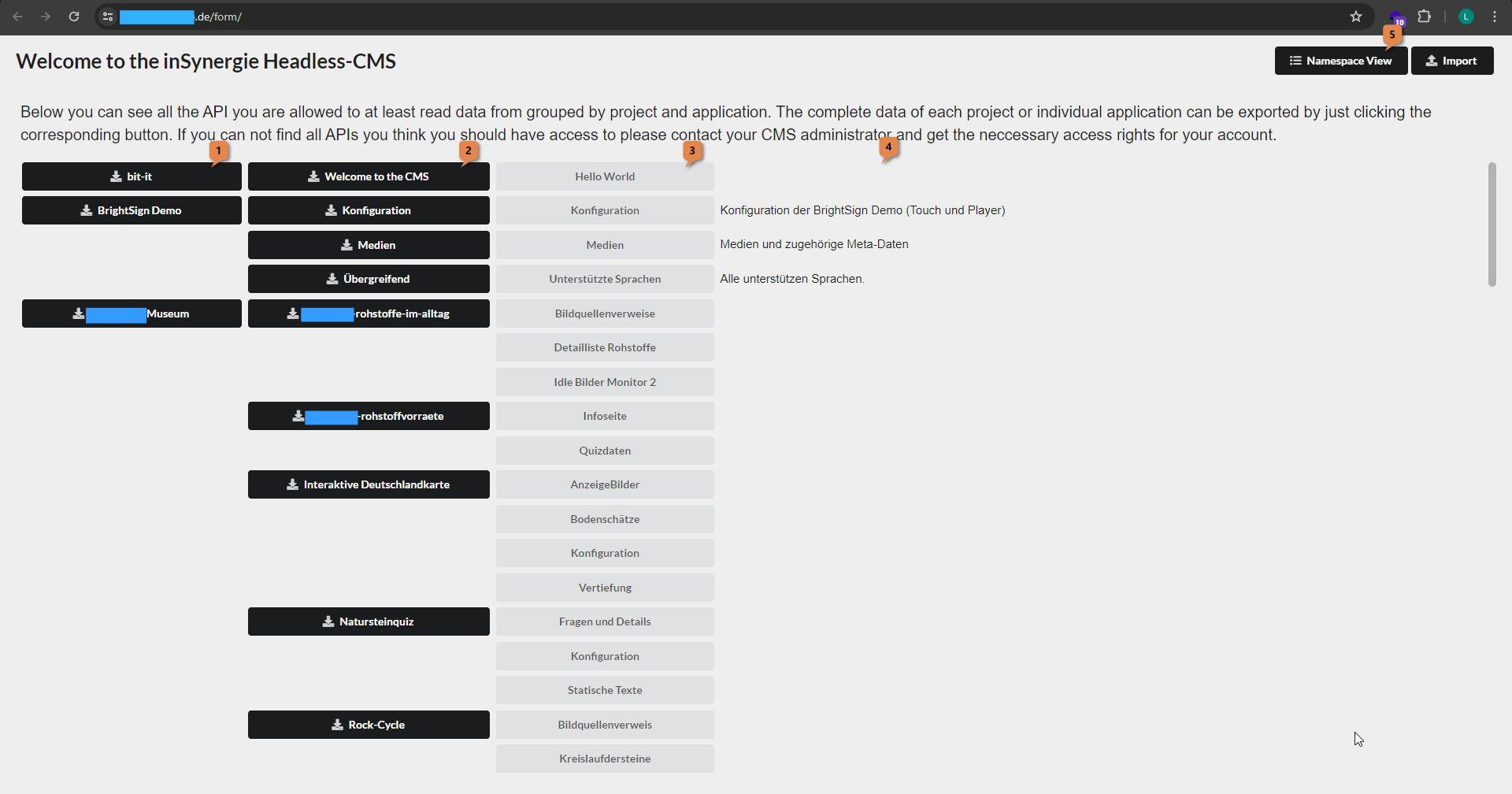
Note on the screenshot: The screenshot comes from an internal test environment which also partially contains development states of real data from earlier customer projects2. For the anonymity of the customers, information in screenshots that points to specific customers is made unrecognisable with blue rectangles.
Hierarchical Structure of the CMS
The data present in the NeuroomNet CMS is arranged hierarchically in 3 levels, which can also be seen in the Project View:
- Level 1: Project, see 1 and below
- Level 2: Namespace or, synonymously, Application, see 2 and below
- Level 3: API or, synonymously, Collection, see 3 and below
- (under 4 there are optional descriptions of the APIs / Collections)
So for example in the case of the screenshot above,
- "BrightSign Demo" is a project 3,
- "Medien" is a Namespace (Application) of the project "BrightSign Demo" and
- "Medien" is a same-name API (Collection) of the Namespace "Medien" of the project "BrightSign Demo"
Level 1: Projects
The Projects level serves for clarity for parties / tenants working on multiple projects or to divide large projects. Most users will only see one project here — the project that is relevant for them.
Level 2: Namespaces
A project consists of at least one Namespace4: A Namespace generally stands for at least one of the following aspects
- Different applications / apps, such as exhibits
- Subject areas
- A party / tenant
- (The complete project)
Technical notes for software developers when creating new namespaces: While the projects (level 1) primarily serve human clarity, the namespaces (and the APIs / Collections in the following level 3) are technically relevant for access to the CMS and rights management. Therefore, for technical reasons and to establish simple rights management (including especially the use of wildcards, see later) and in particular multi-tenancy capability, the following notes must be observed5:
- The namespaces, which are technically strings, must be unique
- The namespaces must not contain whitespace
- The namespaces must not contain
/(slash) or other characters that cannot be contained in URLs - The namespaces should have a meaningful prefix such as:
- The developing company in reverse domain notation
- Unique project name
- Unique customer name
- The namespaces can (optionally) have a display name, which is displayed in the CMS frontend (this then does not need to be unique or observe the previously mentioned notes)
- In a namespace, the same languages apply (defined via an API / Collection languages to be created there), provided localisability / translatability is relevant
Examples of sensible namespace names:
- de.insynergie.BrightsignDemo
- Museum-fuer-Kunst123.exponat.impressionismus2
- Museum-fuer-Kunst123.backend
- de.insynergie.Museum-fuer-Kunst123.backend
- org.microsoft.Museum-fuer-Kunst123.backend
Examples of unfavourable namespace names:
- BrightsignDemo
- Impressionismus2
- backend
Note: Almost all of the namespaces visible in the screenshot above were not well chosen (some of them are display names though; the CMS frontend displays the display name if one is present).
Level 3: APIs / Collections
At level 3, the actual data is stored. A Namespace can contain one or more APIs / Collections (synonymous6) here. For each of these APIs the following applies:
- Contains a list of 0 to n structurally uniform records
- This list and the underlying structure can be accessed via a programming interface with the following operations:
  a. Read elements
  b. Add a new element
  c. Delete an existing element
  d. Modify an existing element
  e. Change the structure of the list
- Operations 2.a - 2.d can be performed via the CMS frontend (2.e or the structure can currently only be changed via the programming interface).
Important to know for non-software developers: The data in the CMS can be viewed and changed via the frontend in each of the collections.
Already for software developers: Access to a Collection / API is via HTTP operations (Post, Put, Delete etc.) to https:<base-url>/<"schema" or "data">/<namespace>/<collection>. Accordingly, collection names must not contain invalid characters for URLs.
Viewing and Editing API Data
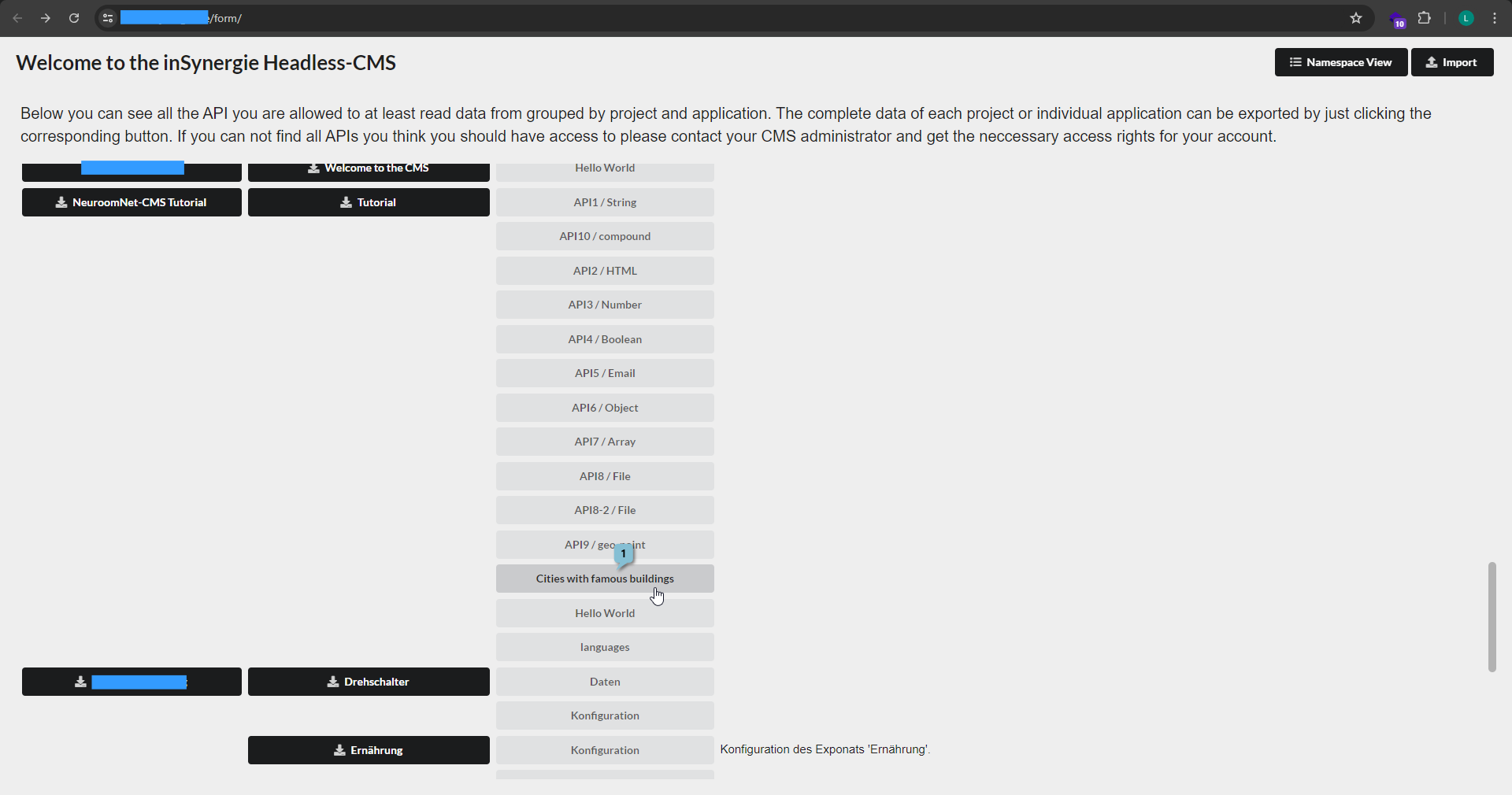
To view or edit data from a collection, click on the corresponding API 1:
Viewing API Data: API View
After clicking on an API, the API view is displayed where the records (elements) contained there are shown in a table:
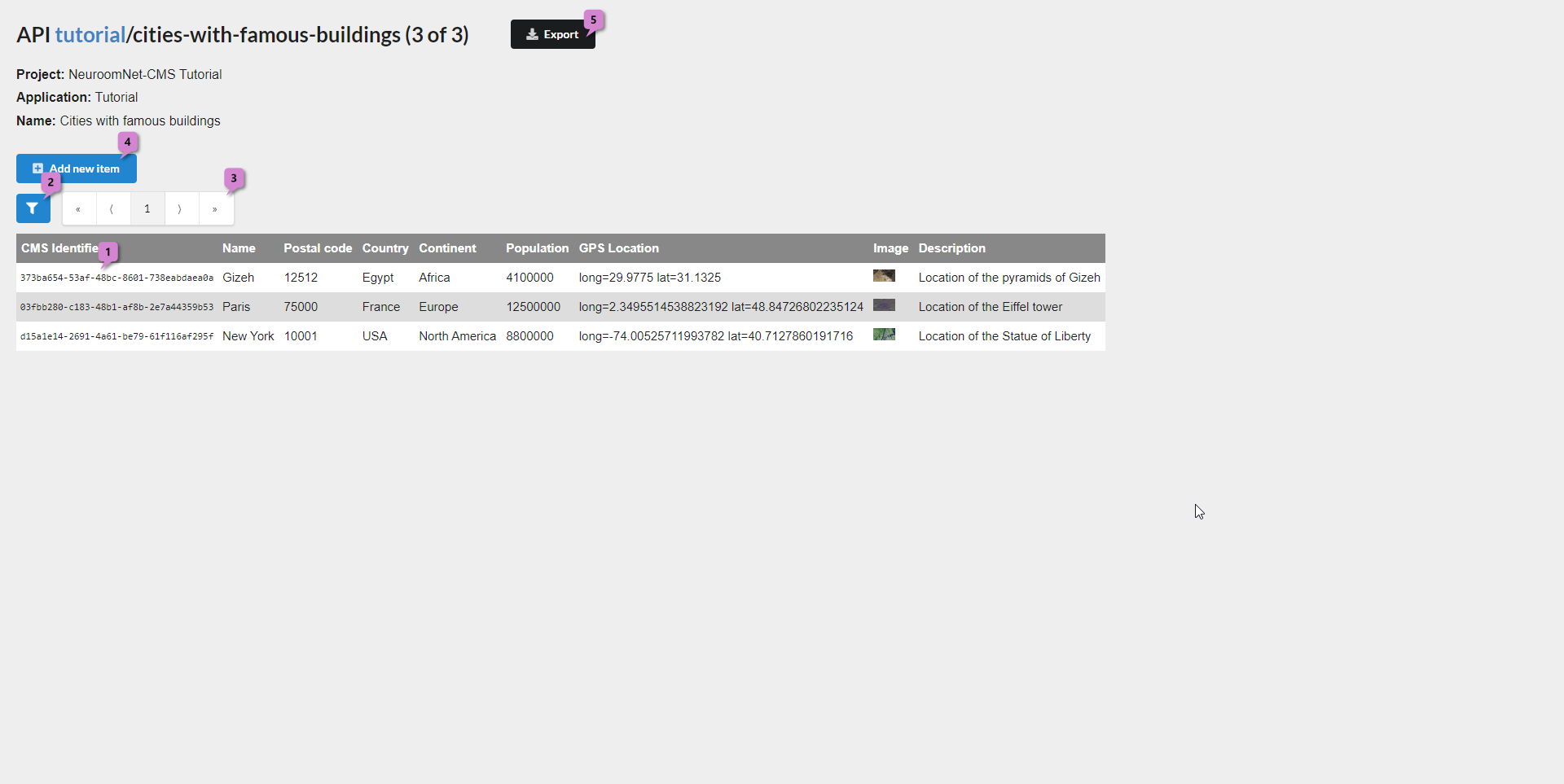
The individual records are represented by rows of the table. The columns correspond to individual attributes (fields), with defined data types, of the records (the attributes and data types of the records are defined in the so-called schema of the API).
In this case / example, cities (in which world-famous buildings are located) are entered in the table with the following data and data types (the latter in brackets)
- CMS Identifier: Technical ID of the record (Note: This is often hidden; in this example / API it is displayed)
- Name (String / Text): Name of the city
- Postal code (String / Text): Postal code
- Country (String): Country
- Continent (String): Continent
- Population (Number): Population
- GPS Location (Geo-Point): GPS coordinates of the city
- Image (File): Image file (in this case with an automatically generated thumbnail of size 192x108)
- Description (String): Description
For example, the first record (element) 1 has the following concrete attribute values:
- CMS Identifier: 373ba654-53af-48bc-8601-738eabdaea0a
- Name (String / Text): Gizeh
- Postal code (String / Text): 12512
- Country (String): Egypt
- Continent (String): Africa
- Population (Number): 4100000
- GPS Location (Geo-Point): 29.9775, 31.1325
- Image (File): A satellite image (effectively a jpg file)
- Description (String): Location of the pyramids of Gizeh (Note: This is a localised text for the English language, more on this later)
The records displayed in the table can be influenced via the filter button 2 and the paging buttons 3.
Adding an Element to an API
To add a new element to an API, click the "Add new item" button 4 in the API View. A popup then opens with the editing view of an API element (API element view) in which concrete values for the new element / record can be entered (same view as when editing an API element, see the following section).
Editing an API Element (API Element View)
To edit an already existing element of an API, click on the corresponding row of the element in the API View. A popup then opens with the editing view of the clicked API element (API element view) — in this example: the row for the Eiffel Tower / Paris:
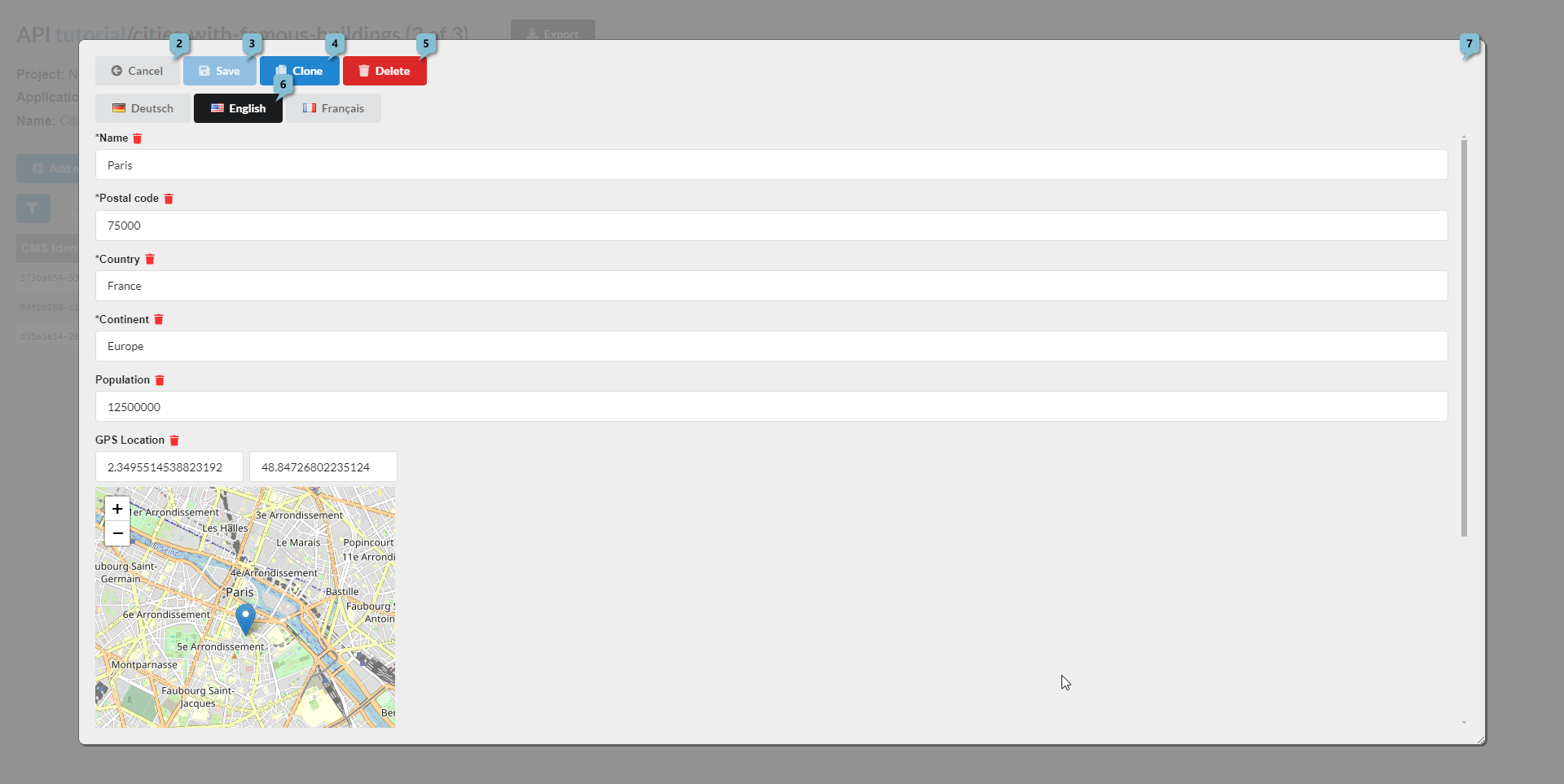
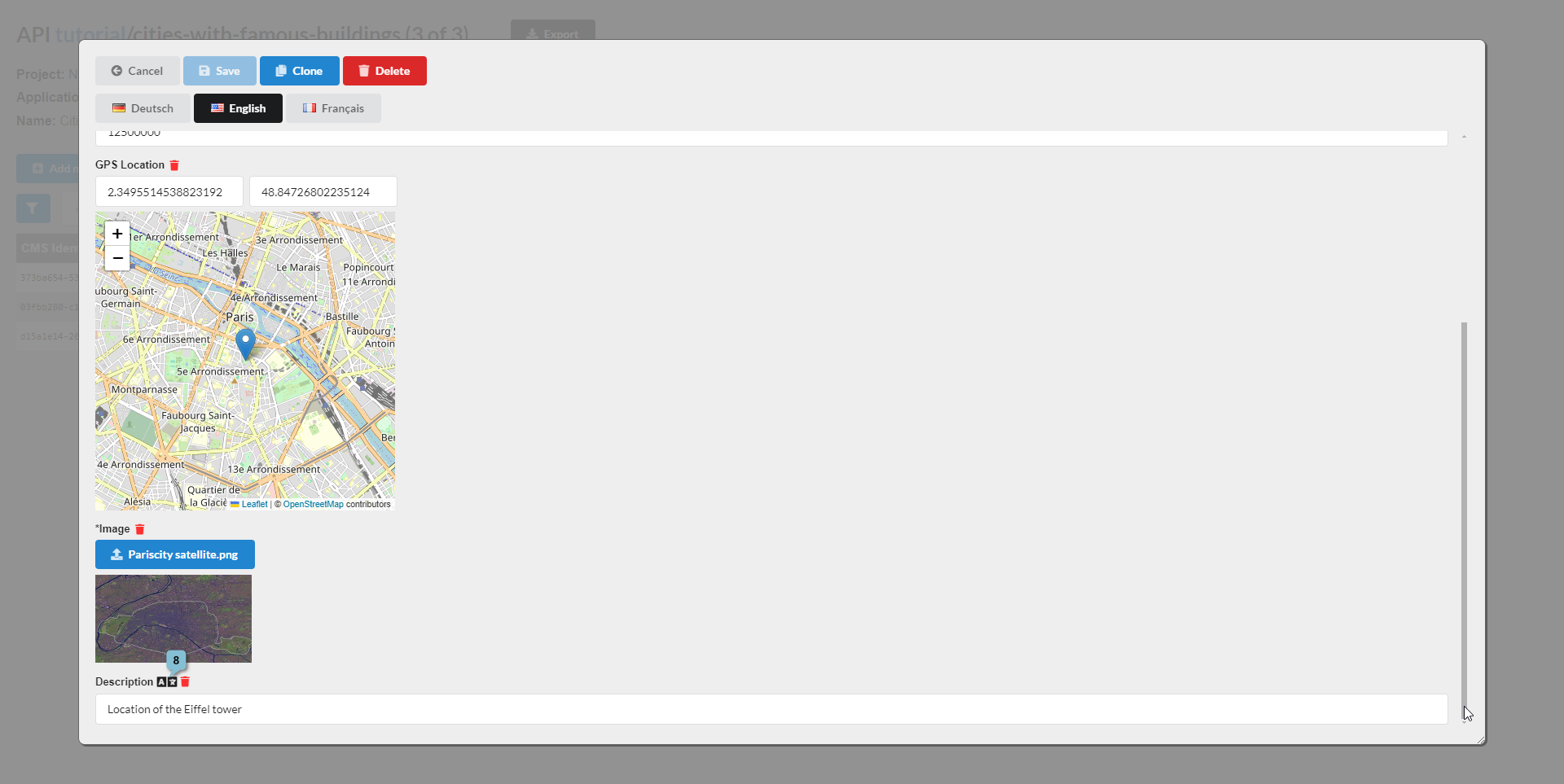
Here the values of individual attributes can be changed accordingly (for the "Image" attribute there is for example an upload button to upload a different file) or individual values reset or deleted via the red trash bin icons. The correspondingly changed state of the element can be saved via "Save" 3. Alternatively the possibly changed state can also be discarded, provided it has not yet been saved via the previously mentioned button, using the "Cancel" button 2.
If configured accordingly, there is also a language selection so that attribute values (including media files) can be defined per language: The respective language can be selected via language buttons 6. Different values of attributes can then be entered (and saved) per language for attributes defined as localisable (localizable) in the API schema7: In this example / API this is exclusively the attribute "Description" 8 at the very bottom of the lower screenshot (recognisable by the icon to the left of the red trash bin icon).
Via the "Clone" button 4 the current element can be duplicated.
If configured accordingly, the so-called preview can be called via a "Preview" button at the very top right (not visible / configured in this example) 7. More on this later, but another system can be defined in the CMS which then displays the current (or more precisely the last saved) state of the current collection element. This functionality is primarily intended for test or debugging purposes.
Example: Entering Translations for an API Element / Record
As a small, not untypical example, consider the following case: Suppose you want to create a corresponding French localisation / translation of the API element for Paris / Eiffel Tower, you would proceed as follows (see screenshot below):
- In the open API Element View, select the "French" language via a mouse click at 1
- At the very bottom 2 you can see that the localisable attribute Description is still empty (so a French text is evidently still missing here)
- Accordingly, enter the French text there (e.g. "Localisation de la Tour Eiffel")
- And click "Save" 3
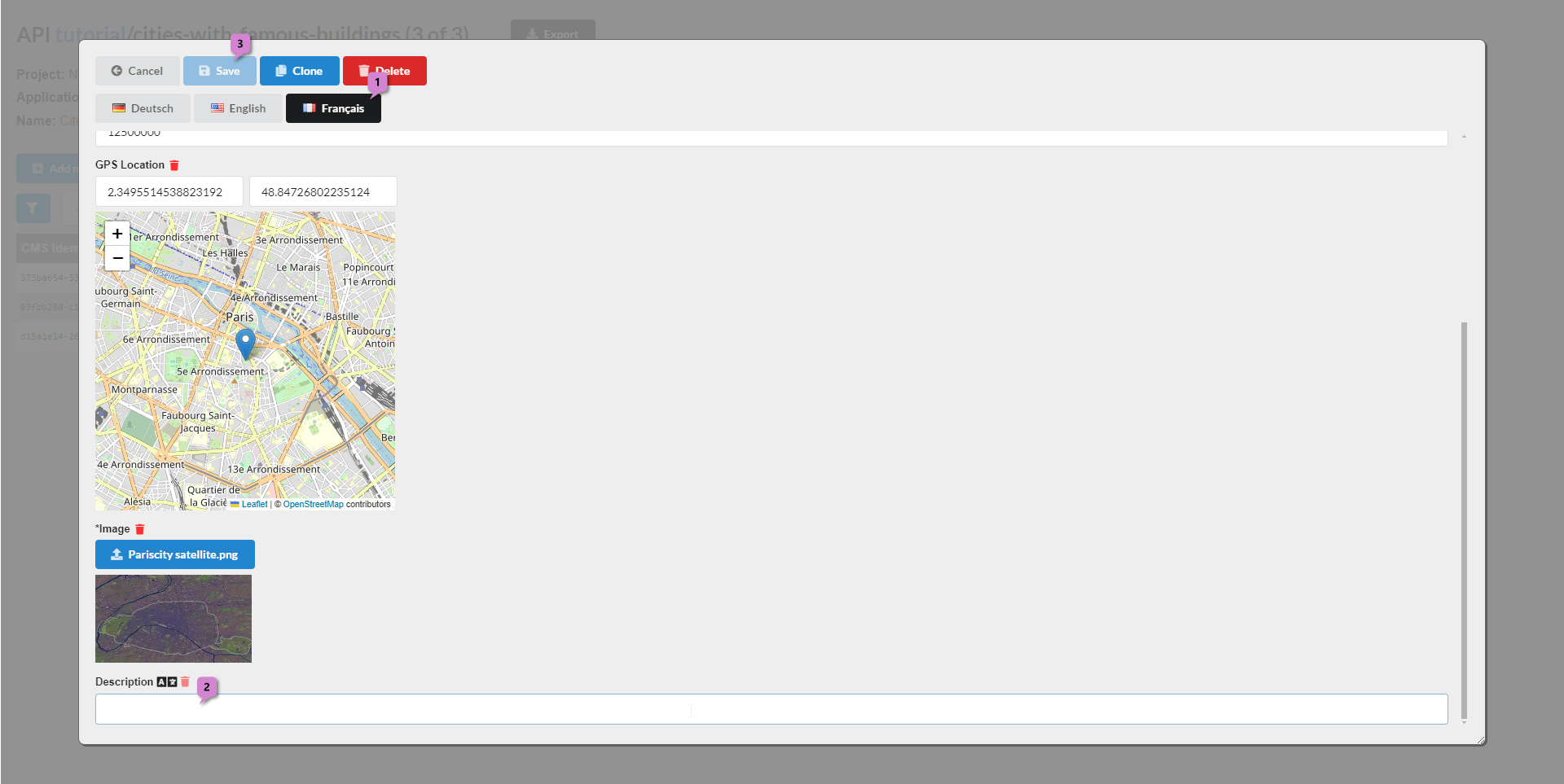
The French text is now correspondingly saved in the CMS and available for other software that displays or otherwise uses it (possibly the other software needs to be restarted or similar until the new text is correspondingly available there — depending on the concrete setup of the other software and when it reloads / updates the content from the CMS).
Deleting an API Element
Via the edit view of an element of an API (API element view) the same element can also be deleted — using the "Delete" button (5).
Importing and Exporting Data
The CMS frontend allows complete collections to be imported and exported as JSON files.
Typical use cases for this are:
- Creating or re-importing local backups of current data states
- Possibly as an intermediate file format so that external translators can create translations in Excel8
Exporting
Current data sets (including underlying schemas) can be exported as follows:
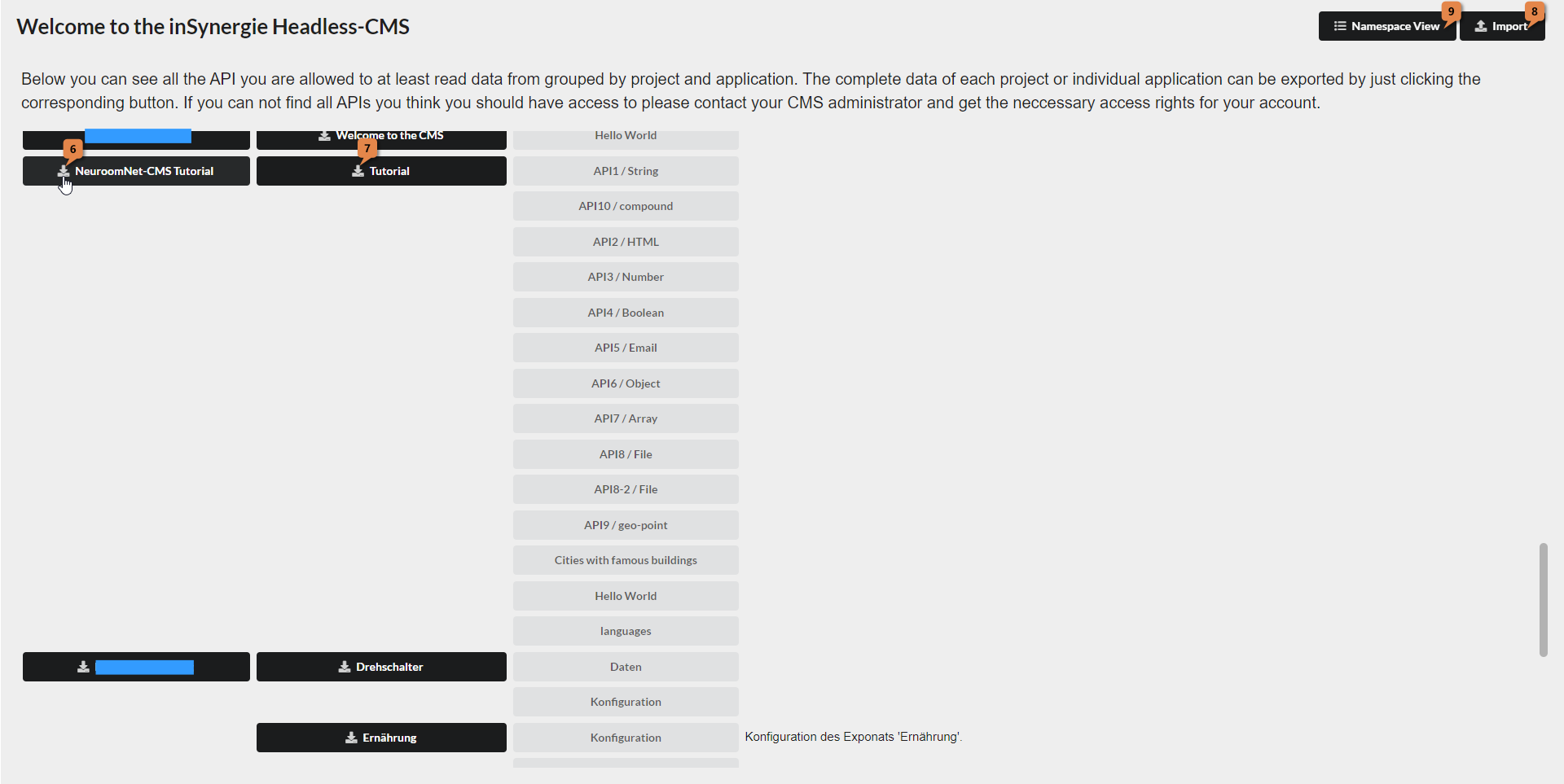
- Entire projects or namespaces via corresponding download buttons 6 and 7 respectively in the Project View
- Entire collections via the "Export" button at the top right in the respective collection view
Importing
Previously exported ZIP files can be re-imported via the "Import" button 8 in the Project View.
While an export is uncritical (at most takes longer if large media files are contained in it), an import is potentially dangerous because existing data can be overwritten depending on the scenario (if there are already same-name namespaces and APIs in the CMS). Therefore this should only be carried out by knowledgeable persons (or only in cases where there is definitely no data or structures in the CMS for the data / structures to be imported).
The import is described in more detail in the developer documentation Export and Import.
Rights Concept / Rights Management
Since the NeuroomNet CMS should also be usable without NeuroomNet, the NeuroomNet Rights Management module is not used for this purpose, but rather a special namespace "cms" which is visible for correspondingly authorised users in the so-called Namespace View. This Namespace View is accessible via button 9 at the top right in the Project View.
In the namespace "cms", new users can then be created in the collection "users" via button "add new item", like in a normal collection9 (and existing users can also be edited or deleted analogously).
For further explanations of rights management, which, even if purely possible via the CMS frontend, is somewhat more technical, see Setting user rights in the technical section.