Home page
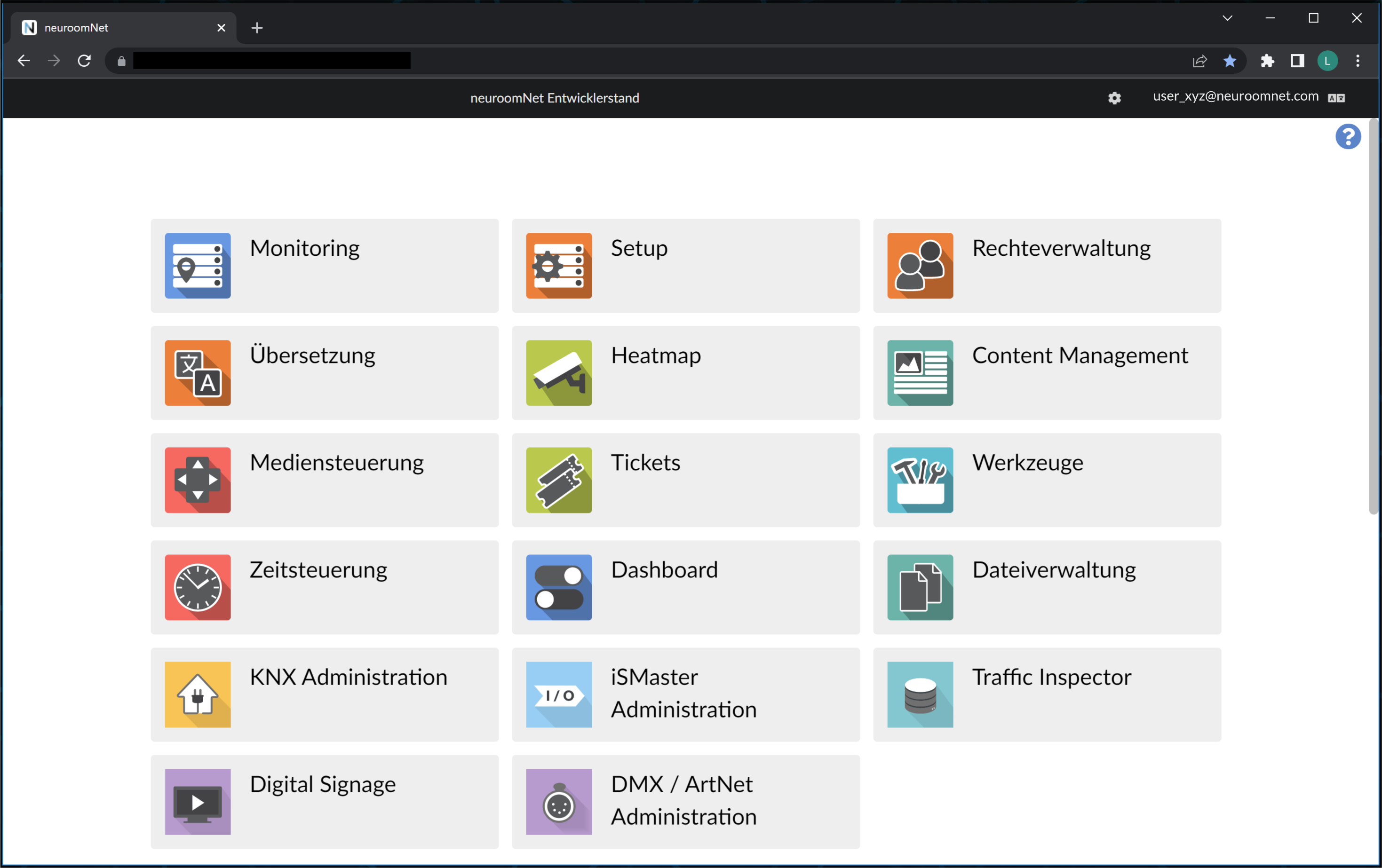
After successfully logging in, you will land on the NeuroomNet module selection page or, in short: NeuroomNet homepage:
View and edit personal account settings
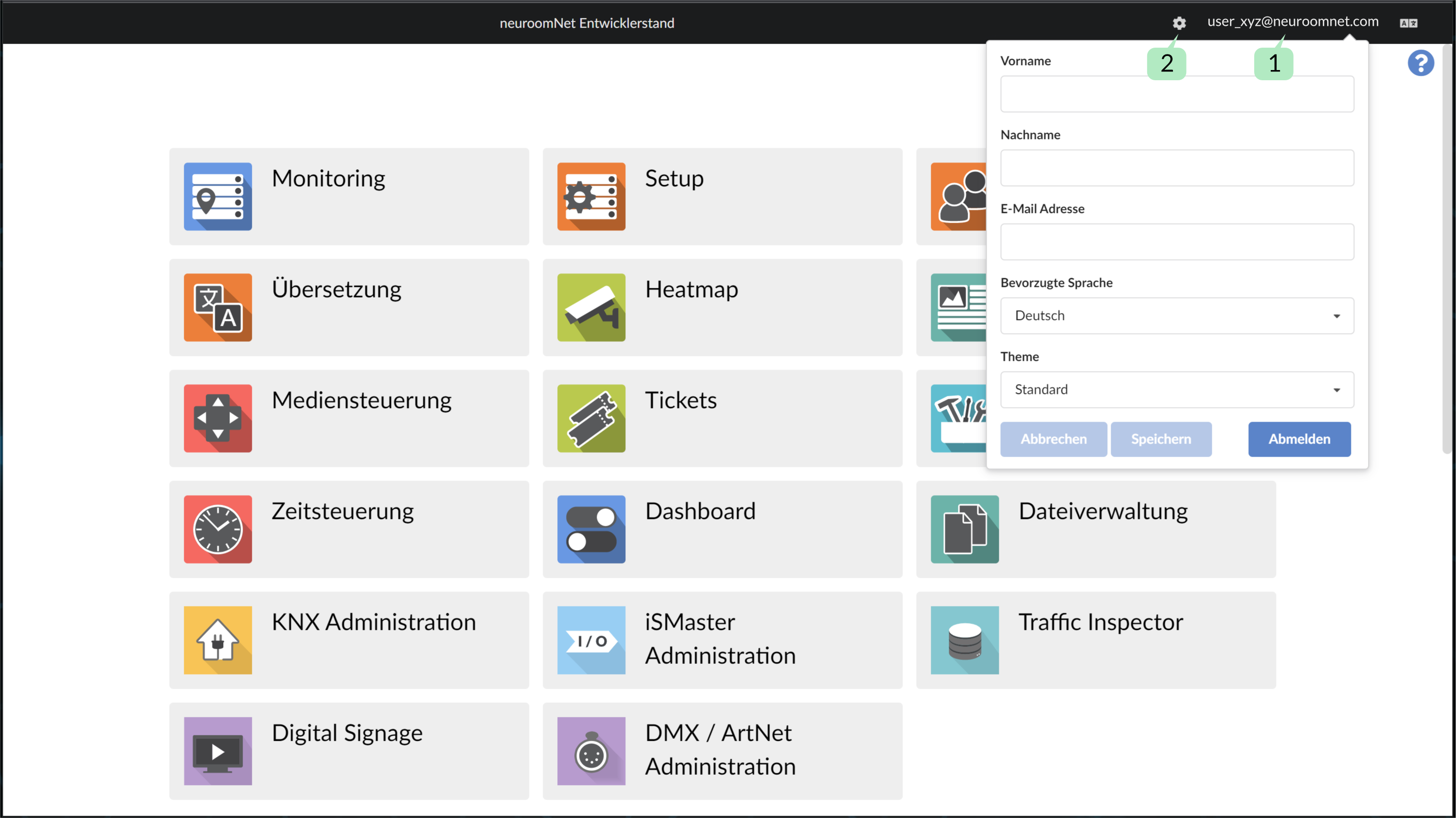
By clicking on your own account name at the top right 1, logged in users can see and edit their personal settings:
Add module
The homepage inherently contains the standard NeuroomNet modules (more precisely their user interfaces) in the form of tiles. Using the gear 2 (see above) you can activate the editing mode of the home page, in which tiles can be moved and new tiles can be created:
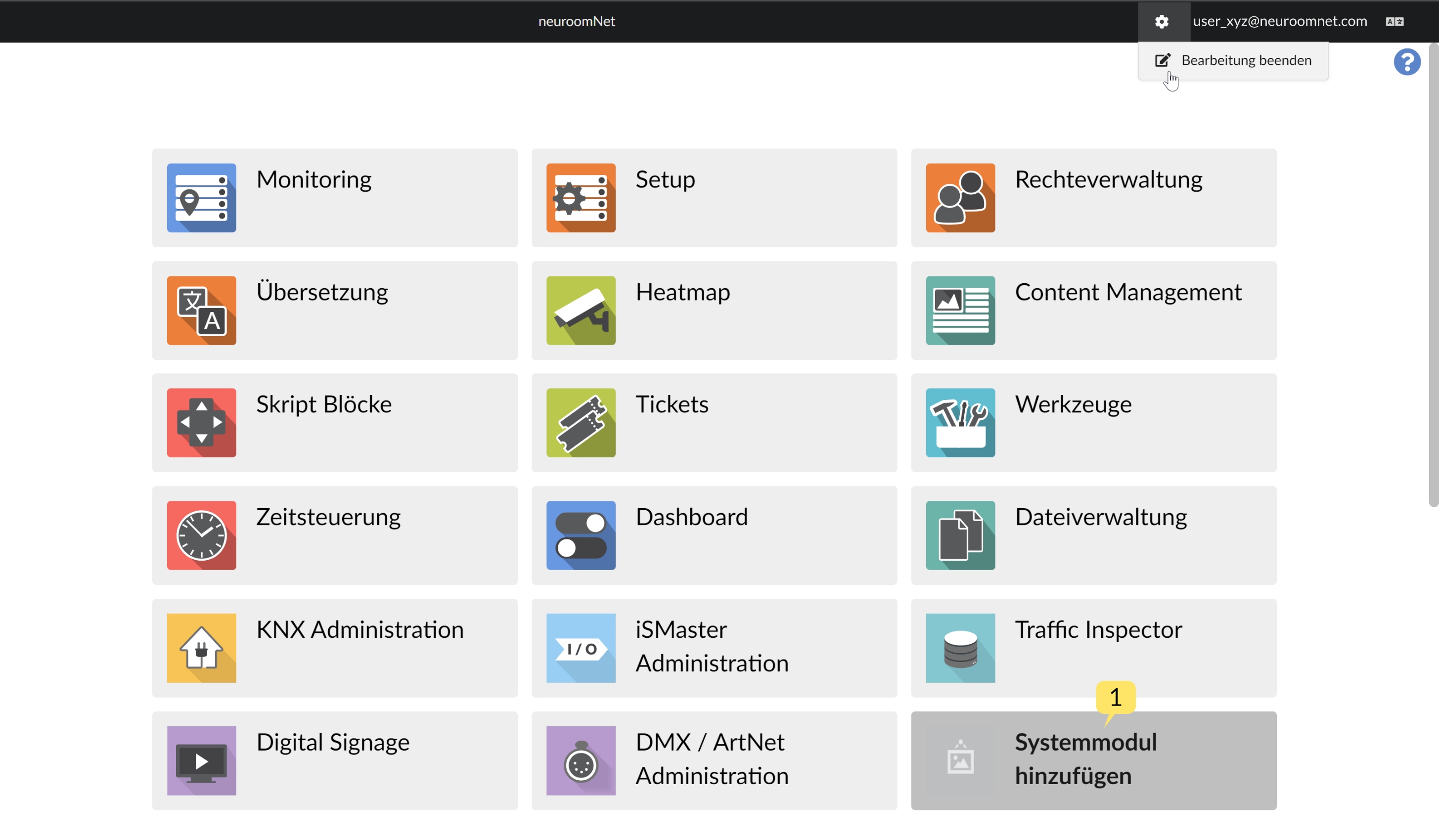
You can create a new tile using “Add system application” 1:
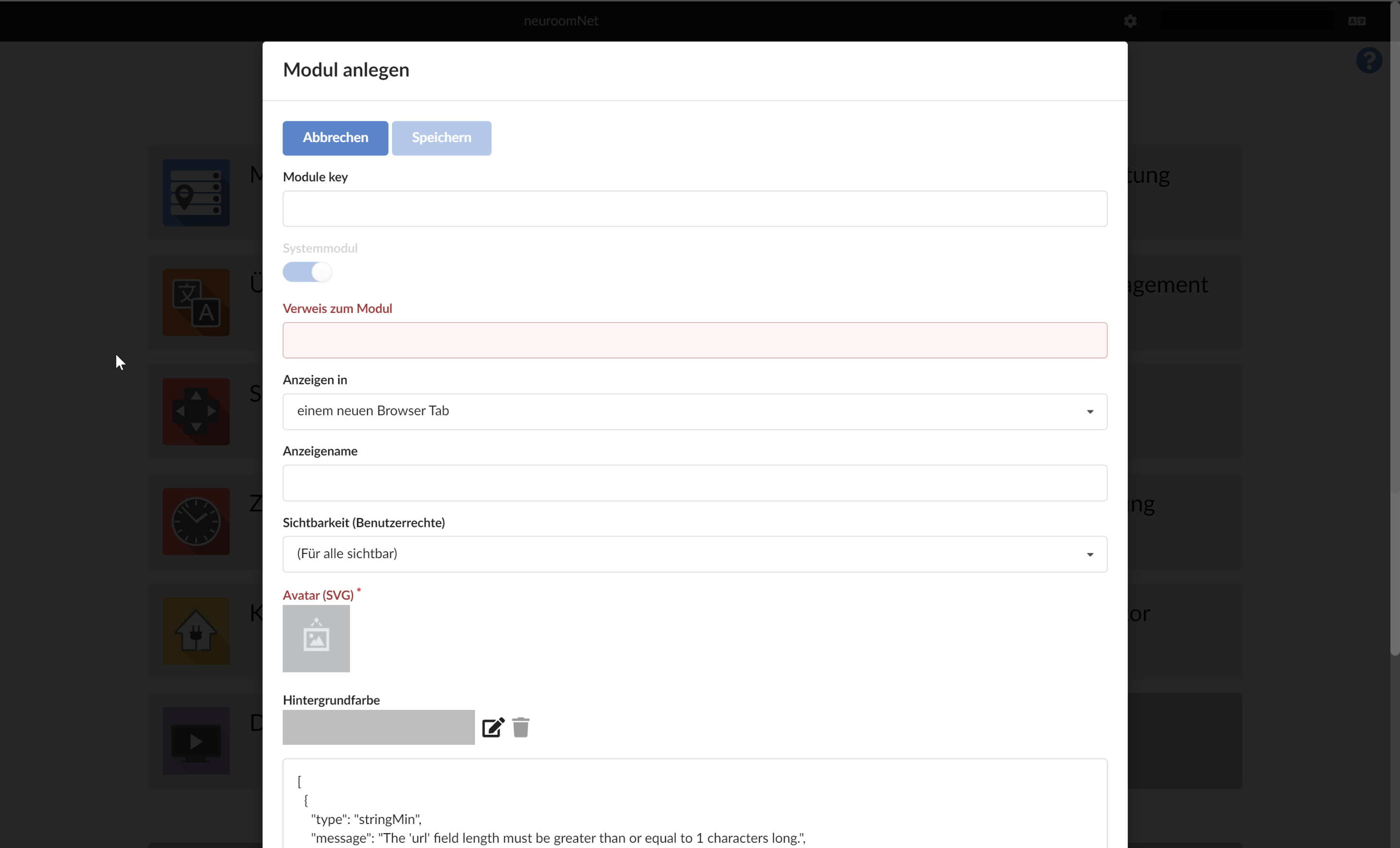
Behind each such custom tile, a web link / URL can be stored to a website that should be opened when the tile is clicked.
The following can be set via the tile settings:
- Module key: Reserved for certain NeuroomNet system modules
- System Application: System applications are displayed on the landing page in the top block. Applications created by users are displayed in the bottom block.
- Reference to the application: Link to the (web) app
- Show in: Select whether the web app opens in a new browser tab, in the same browser tab or in a new browser window
- Display name: This name will be displayed on the homepage and can then be translated into other languages in the translations. (Attention, the translations may overwrite the display name selected here.)
- Visibility: Here you can restrict the user groups who can see the app
- Avatar: Here you can choose a suitable avatar from an icon pool. The installed graphics are displayed under Local. An Internet library can be accessed under Online.
- Background color: The background color of the button on the landing page.
- Text field at the bottom: Error messages are displayed here in technical form (JSON) regarding the entries in the previous fields.
Example of a redesigned homepage:
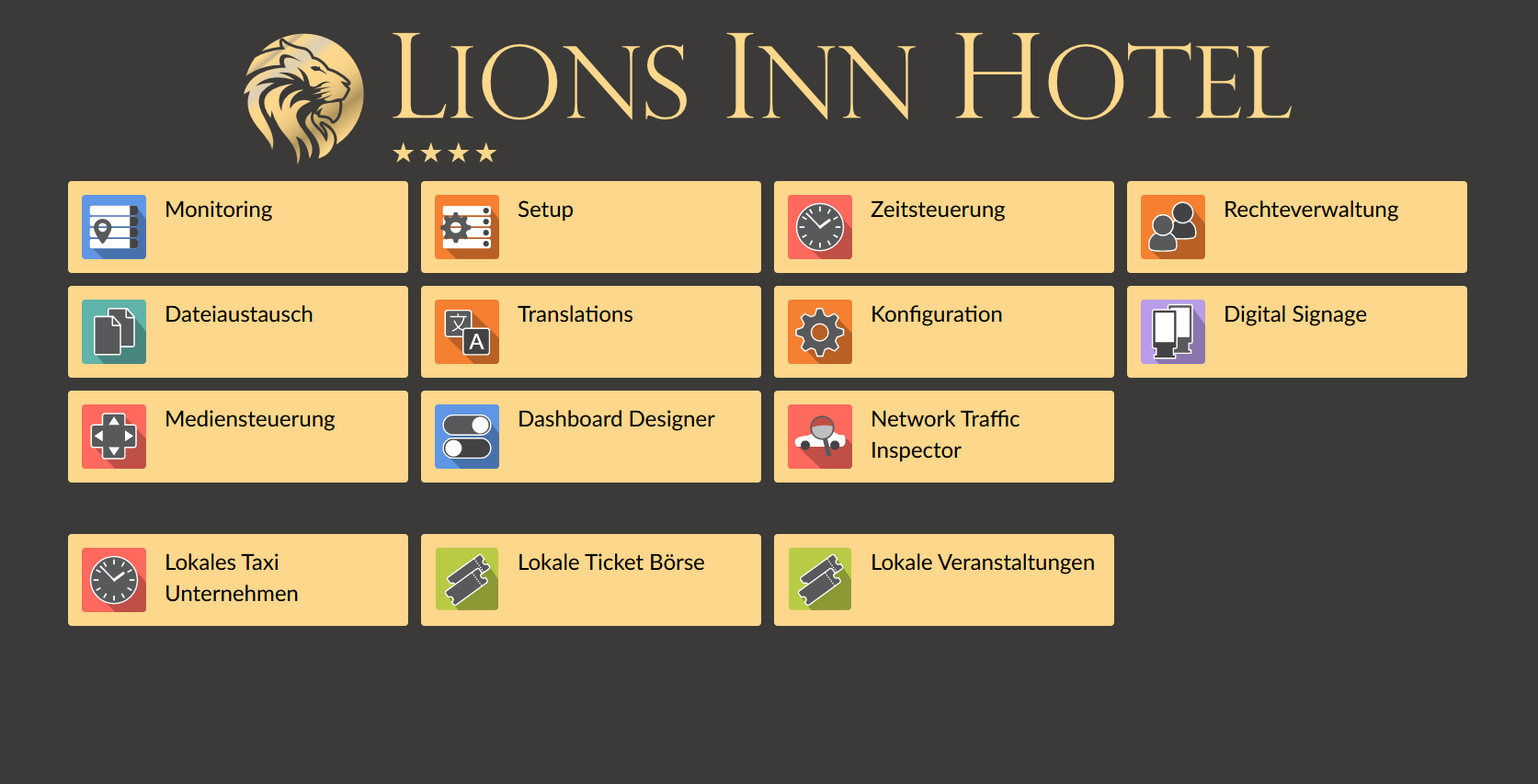
Heading and background can be changed in the configuration module.