Timecodes
Timecodes are available as of NeuroomNet version 2026.2.
A timecode is a running clock that can be attached to a script. It counts upwards from position 00:00:00.0 (hours : minutes : seconds . tenths of seconds) and fires events as it crosses configured positions, which can be used as triggers in the script's blocks. Without further configuration, a timecode runs on a 24-hour loop.
Unlike timers, which fire a single event over and over after a fixed interval, a timecode is a continuous, freely seekable clock with any number of cue points. This makes it possible to implement shows and sequences where several actions have to be triggered at precisely defined points in time relative to the start.
Each script can own at most one timecode.
Enabling and configuring a timecode
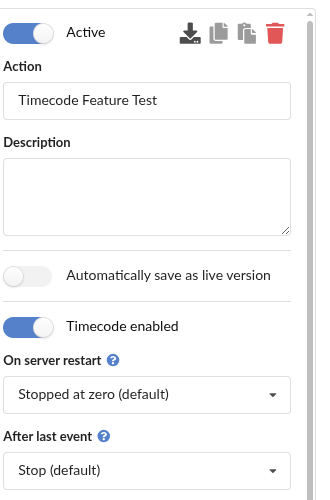
A script's timecode is enabled via the Timecode enabled toggle in the right sidebar of the script editor. The timecode settings take effect immediately — they are not part of the script's draft/live versioning.
-
On server restart: Controls what happens to the timecode's position and state after a server restart:
- Stopped at zero (default): The timecode always starts fresh — stopped at position 0.
- Running at zero: The timecode starts fresh at position 0, but immediately begins running.
- Resume position silently: The timecode remembers its position and state and continues from there. Events that would have been crossed during the downtime are not fired.
- Resume and catch up missed triggers: Same as above, but events that would have fired while the server was down are replayed (capped at one 24-hour loop).
-
After last event: Controls what happens right as the script's last configured timecode event fires (or, if no events are configured, once the 24-hour loop completes):
- Stop (default): The timecode stops and jumps back to position 0.
- Pause: The timecode freezes at the position of the last event.
- Loop: The timecode immediately restarts from position 0. The effective loop length thus becomes the position of the last configured event — not 24 hours.
If the Timecode enabled toggle is switched off or the script is deleted while its timecode is running or paused, a confirmation prompt appears — the timecode is stopped in the process.
Manual control
Below the settings, the sidebar shows a control panel for the selected script's timecode:

- State badge: Stopped, Running or Paused
- Position display: The current position, ticking live
- Start: Starts the timecode — always at position 0
- Pause: Freezes the running timecode at its current position
- Resume: Continues a paused timecode from its frozen position
- Stop: Stops the timecode and resets it to position 0
- Goto: Jumps to the entered position. Events configured exactly at the target position are fired. The run state is preserved — a running timecode keeps running from the new position, a stopped or paused one stays put.
Timecode as an event
If a script's timecode is enabled, the Timecode reached event becomes available in that script's blocks (category Timecode in the event selection dialog). Each event is configured with a position (hours : minutes : seconds . tenths of seconds) — when the running timecode crosses this position, the block is triggered.

Timecode events always refer to the own script's timecode. It is not possible to react to another script's timecode — it can, however, be controlled via actions (see below).
Timecode actions
Five actions exist for controlling timecodes from script blocks (category Timecode in the action selection dialog):
- Timecode Start: Starts the timecode at position 0
- Timecode Stop: Stops the timecode and resets it to position 0
- Timecode Pause: Freezes the running timecode at its current position
- Timecode Resume: Continues a paused timecode
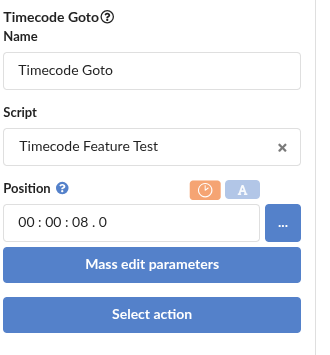
- Timecode Goto: Jumps to the configured position (same behavior as the Goto button in the control panel)
Each action has a script selection as its target — the timecode of any script with an enabled timecode can be controlled, including that of another script. The Goto action additionally has a position input.
If an action points to a script whose timecode is not (or no longer) enabled, it is shown grayed out in the editor and has no effect when executed.
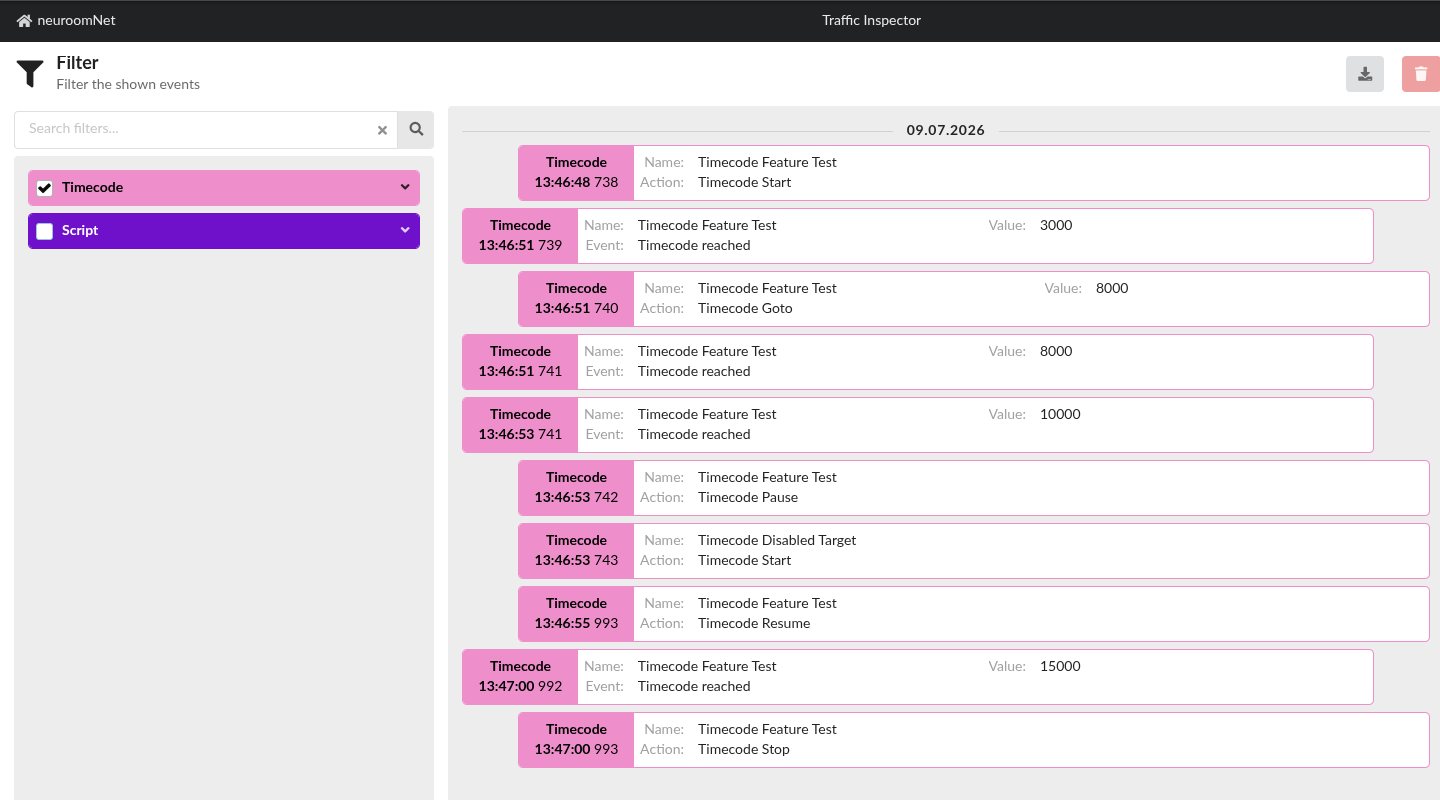
Executed timecode actions are additionally logged in the Traffic Inspector module, where they can be traced for debugging purposes. The fired "Timecode reached" events appear there as well (position in milliseconds in the Value field):