Worked list examples
These examples demonstrate different uses of value maps in the List element. Each map JSON object represents one entry of the containing layout's valueMaps array. Create the same definitions/rules in the editor; a map object alone is not a complete template import file.
Bind Items to an Object list containing the sample items, then paste the corresponding item template into Item layout. Replace sample field names and asset references with your actual data. Examples do not add mappings to other element types.
1. Event list: one state, several outputs
This example separates general state data from the List's presentation. StateAppearance provides a label, icon name, colour, optional row style and an HTML fragment. The list decides to place that fragment beside the timestamp/message.
Map definition
{
    "name": "StateAppearance",
    "outputs": [
        { "key": "label", "type": "text" },
        { "key": "iconName", "type": "text", "editor": "icon" },
        { "key": "colour", "type": "text", "editor": "color" },
        { "key": "rowStyle", "type": "text" },
        { "key": "content", "type": "htmlTemplate" }
    ],
    "rows": [
        {
            "match": "equals",
            "value": "started",
            "values": {
                "label": "Started",
                "iconName": "play circle outline",
                "colour": "#21c08b",
                "content": "{{icon @outputs.iconName color=@outputs.colour}}"
            }
        },
        {
            "match": "equals",
            "value": "error",
            "values": {
                "label": "Error",
                "iconName": "warning sign",
                "colour": "#e5a823",
                "rowStyle": "error",
                "content": "{{icon @outputs.iconName color=@outputs.colour}}"
            }
        }
    ],
    "fallback": {
        "values": {
            "label": "Other",
            "iconName": "info circle",
            "colour": "grey",
            "content": "{{icon @outputs.iconName color=@outputs.colour}}"
        }
    }
}
Item data
[
    { "State": "started", "Time": "2026-10-15T08:00:00Z", "Message": "Playback started" },
    { "State": "error", "Time": "2026-10-15T08:01:00Z", "Message": "Player unavailable" },
    { "State": "maintenance", "Time": "2026-10-15T08:02:00Z", "Message": "Service in progress" }
]
Item template
Apply the following rule through the containing template/theme's normal CSS styling:
.dashboardListControl > .dashboardListControlItem.listItem-error:not(.selected) {
    background: #4b2330;
    color: #ffffff;
}
Expected result
| State | Fragment | Text prefix | Outer-row class |
|---|---|---|---|
| started | Green play-circle icon | Started | None |
| error | Amber warning icon | Error | listItem-error |
| maintenance | Grey information icon from fallback | Other | None |
The guarded rowStyle lookup avoids passing an unset value to row. The CSS selector overrides default styling for unselected error entries; :not(.selected) preserves the List's selection colours. The fallback is selected for maintenance, but its values are not merged into started/error. The timestamp is formatted in the rendering environment's time zone. Add right to the layout container to put the icon slot on the other side.
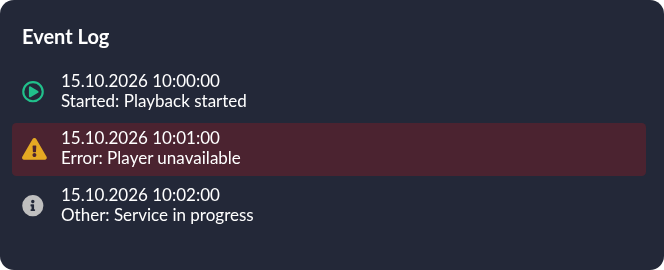
The event example rendered in Preview with the documented CSS. The three items exercise two Equals rules and the fallback; the timestamps use the local rendering time zone.
2. Continuous numeric ranges
TemperatureBand maps a measurement to plain typed data. No fragment is required.
{
    "name": "TemperatureBand",
    "outputs": [
        { "key": "label", "type": "text" },
        { "key": "level", "type": "number" }
    ],
    "rows": [
        { "match": "range", "to": 8, "toExclusive": true, "values": { "label": "Cool", "level": 0 } },
        { "match": "range", "from": 8, "to": 25, "toExclusive": true, "values": { "label": "Normal", "level": 1 } },
        { "match": "range", "from": 25, "values": { "label": "Warm", "level": 2 } }
    ],
    "fallback": { "values": { "label": "Unavailable" } }
}
With an item such as {"Temperature":25}, use:
| Test input | Result |
|---|---|
| Number 7.9 | Cool, level 0 |
| Number 8 | Normal, level 1 |
| Number 24.9 | Normal, level 1 |
| Number 25 | Warm, level 2; Check cooling is shown |
Text 25 | Warm, because Range accepts numeric text |
| Boolean true, blank text or No value | Unavailable; level is unset |
The intervals meet without overlap or gaps: below 8, from 8 to below 25, and from 25 upwards. If displaying the original measurement with number, its field must be a Number; the range matcher's numeric-string conversion does not change the item field's type.

Rendered with {"Temperature":25}. The value selects the range beginning at 25; its numeric level 2 enables Check cooling.
3. False, zero and empty text are values
Capabilities demonstrates values that ordinary truthiness tests can hide, plus a deliberately sparse matched rule.
{
    "name": "Capabilities",
    "outputs": [
        { "key": "available", "type": "boolean" },
        { "key": "count", "type": "number" },
        { "key": "note", "type": "text" }
    ],
    "rows": [
        { "match": "equals", "value": "idle", "values": { "available": false, "count": 0, "note": "" } },
        { "match": "equals", "value": "partial", "values": { "available": true } }
    ],
    "fallback": { "values": { "available": true, "count": 9, "note": "Fallback" } }
}
With {"State":"idle"}, use:
The idle item displays Unavailable, Count: 0 and Empty note. Test map reports set values false, 0 and empty text. The partial item returns available=true, but count and note are unset; it does not borrow 9 or Fallback. An unmatched state selects the complete fallback.
An ordinary if available is appropriate when you mean “is true”. It is insufficient when you mean “is this key set?”, because false is a valid set value. The explicit eq ... false also distinguishes false from an absent result.

Rendered with {"State":"idle"}. The Boolean false, Number 0 and empty Text remain set values, so all three explicit checks produce the documented output.
4. Tracked asset and an unusual output key
Create MediaState with an Asset reference output whose key is image key, and an HTML template output content. Set an Equals rule for ready. Assign a real image using the Asset picker; do not paste an invented ID. Store this source in content:
For an item {"State":"ready"}, the item template is:
Expected: the selected image is rendered, and the saved typed Asset value protects that asset against deletion. The lookup form reads the space-containing key without changing its meaning.
Unset the Asset value and the image disappears; renderMap can still render the fragment's empty result. After saving removal of the last structured reference, deletion becomes available. Export clears the Asset value; import requires a destination image assignment. A literal asset ID written in content alone would render an image if resolvable, but would not provide this lifecycle tracking.

Rendered with {"State":"ready"} and an existing image selected for image key. The fragment resolves the space-containing key through lookup; the sample image is specific to this local asset library.
5. Text, HTML and explicit nested rendering
MessageParts demonstrates context, escaping and sibling outputs. It uses an always-selected fallback so the example focuses on rendering rather than matching.
{
    "name": "MessageParts",
    "outputs": [
        { "key": "caption", "type": "textTemplate" },
        { "key": "content", "type": "htmlTemplate" }
    ],
    "rows": [],
    "fallback": {
        "values": {
            "caption": "{{this.Message}} [{{@value}}]",
            "content": "<strong>{{renderMap \"MessageParts\" @value \"caption\"}}</strong>"
        }
    }
}
With {"State":"ready","Message":"<em>Ready</em>"}, use:
Expected HTML is <strong><em>Ready</em> [ready]</strong>: the outer strong element is authored HTML, and the Message markup remains visible text. The Text fragment is escaped once at normal insertion. Both calls retain the item's context; @value is ready.
Using map for caption would return {{this.Message}} [{{@value}}] as literal source. Reading @outputs.caption in content would also read raw source. Neither recursively executes strings. The explicit nested renderMap selects and executes the sibling output.
Do not make caption/content call each other recursively. A cycle yields an empty failing fragment with a cycle diagnostic; it does not select another rule. Text-mode fragments cannot propagate row classes, even if a nested HTML fragment declares them.

Rendered with {"State":"ready","Message":"<em>Ready</em>"}. The nested Text fragment keeps the markup visible as text, while the authored outer strong element supplies the bold styling.
Checking your adaptation
- Confirm field names and actual types in your Items data; they are case-sensitive.
- Use Test map for each Equals value, numeric endpoint and fallback/no-value case.
- Preview the individual fragment with a representative item, then preview the complete item template to exercise real matching and layout.
- Check unset values, false, zero, empty text, long messages, missing icons/assets and light colours on your dashboard background.
- Review Where used before renaming/removing outputs, and reassign assets after importing.
The helper reference explains diagnostics and escaping. The List page lists CSS classes and variables for adapting these layouts to your theme.